Introduction
Version control is a kind of practice that tracks and controls changes made to the source code (documents as well) over a period of time by a single or multiple developers.
Git is an open source distributed version control system that enables the developers to collaborate on any scale projects. Git not only enables to record the changes in the central repository, also enables the developers to know locally the complete history in a compressed format.
Linus Torvalds, the developer of the Linux kernel, created Git in 2005 to help control the Linux kernel's development, as it was using BitKeeper version control system, which shut down its free service. Git is written in C language.

Credits: https://itsfoss.com/linus-torvalds-facts/
Git Architecture
Distributed Architecture
Unlike traditional client-server architecture, where in the local holds the working copy and that needs to be pushed (commit) to the centralized server. The first two challenges with this architecture is the developers are dependent on access of server where the internet could be bottleneck at times or lets say when you are not in office you do not have access to centralized system but would want make progress anywhere and secondly the developer needs to create copies of the repository for maintaining different set of changes(versions) of the project, though you can create any number of copies but it is hard to maintain the entire history, also it will bloat the hard disk space.
Git follows distributed architecture, also can be called as peer-to-peer system.
First Layer, can be called as working space after creating the initial setup in the local machine for developing the source. This is where the development takes place, git is not yet aware of the changes made here.
Second Layer, staging area holds the changes that are about to be committed. The added files uses git add command. This is also called as staging index.
Third Layer, local repository all the commits are made in this area. These changes being tracked by Git.
Final Layer (Github / GitLab / Inhouse Central Repository), all the commits can be pushed to the master or central repository.

Fig 1: Distributed Layers of Git Architecture
Storage Architecture
At Git's core, its a file system, where files are stored as a blob object. There are three important concepts behind the power of git, i.e Objects, Hash and DAG.
Objects: Object are of 3 Types – Commit, Tree and Blob.
Commit: Holds the snapshot of the file(s) changes of the working tree i.e the Hash or Pointer of the tree changes, includes author, commit message. Additionally holds the metadata of the parent information. Lets see with an example:
% git cat-file 2acd7e861489ba28753e5e53642f6e6fbdcc802 -p
tree b6d79557a7a1afb4f3469eb1c8dcb1ac9ae3fe51
parent f72f2b28645ac2f2e793a8af46d2b1a3859d4521
author Michael Rose <michael_rose@gmx.de> 1622193400 +0200
committer Michael Rose <michael_rose@gmx.de> 1622705070 +0200
gpgsig -----BEGIN PGP SIGNATURE-----
*******
=xksJ
-----END PGP SIGNATURE-----
chore: add new formula for mongocryptd MONGOSH-800
Description:
git cat-file 2acd7e861489ba28753e5e53642f6e6fbdcc802 -p : This command helps us to see the content of the commit file. Each object would be saved with the hash file name (next topic). As these files are compressed, we cannot see with simple cat command.
tree b6d79557a7a1afb4f3469eb1c8dcb1ac9ae3fe51 : This line lets you know this commit holds this tree's content.
parent f72f2b28645ac2f2e793a8af46d2b1a3859d4521 : Meta data holding parent information.
author, committer : holds the information of the person performed the commit operation.
gpgsig : signature of the committer, confirming its the user who performed the action.
chore: add new formula for mongocryptd MONGOSH-800 : holds the commit message given by the committer while commit.
Tree: Holds the tree data structure for all the files for a commit. The tree either holds child tree or the blob objects. Now lets see what the tree holds of the previous seen commit.
% git cat-file b6d79557a7a1afb4f3469eb1c8dcb1ac9ae3fe51 -p
040000 tree ec378a15fd3f5e488c9b7df999a69c1f796b6aef Aliases
040000 tree 9c3d7e8ebb319e8baafb028098cb3c6751a28301 Formula
100644 blob da055e4a495e11d9c33858fe27c844b5d9771d0f LICENSE
100644 blob e6cd6560e52c3431d2e2b509cc7724067c3b4799 README.md
Description:
Holds two subtrees and blob objects, Aliases and Formula are the sub directory names and files are LICENSE and README.md
Blob: All the committed files in the git are compressed and saved as blob. The files could be text, image, source code, videos, audio and so on. Now we see how the LICENSE file looks like.
% git cat-file da055e4a495e11d9c33858fe27c844b5d9771d0f -p
Apache License
Version 2.0, January 2004
http://www.apache.org/licenses/
TERMS AND CONDITIONS FOR USE, REPRODUCTION, AND DISTRIBUTION
1. Definitions.
"License" shall mean the terms and conditions for use, reproduction,
and distribution as defined by Sections 1 through 9 of this document.
Hash: So far are seen a big random set of characters, wondering what it is, well its Hash holding hexadecimal values. All of the objects types are represented using this 40 characters SHA-1 hash as a file name, all the commits , blob or tree object. As said each commit is represented as hash-object, if the same content and same name and same permissions is present two files it generates same hash, as a result redundant content storage is avoided. But lets say if the if we committing two different file with same content and also with same commit message if will not have same hash for the commit, because author, time and other parameters could vary. Hash is used as unique reference.
Internally Git uses the first 2 characters to organize in directories, it acts as indexing. Hypothetically if we have 1000 commits imagine our directory crowd, hence to simplify Git uses this approach to organize the directories.
% ls
01 16 25 37 47 58 6b 77 89 9b a8 bb ce dd
36 45 57 69 76 88 9a a7 ba cc dc e9 fb
% cd 65
65 % ls -l
total 24
-r--r--r-- 1 dev admin 443 Feb 1 21:44 183ffb3cf7f7efcda8cfc3963366448028b768
-r--r--r-- 1 dev admin 194 Feb 1 21:44 da363f55906f7d1975f477c4b247c2f250b0a2
-r--r--r-- 1 dev admin 444 Nov 20 14:00 f12ea99f76942c0f099c00cdab43dfd629c6d6
65 % git cat-file -t 65183ffb3cf7f7efcda8cfc3963366448028b768
tree
DAG: Git is a one giant graph. Git uses a DAG – Directed Acyclic Graph to track the history of changes to the content in the repository. DAG is graph which points nodes but never repeats, saying there is never cycle formed. As stated above, each commit object contains metadata about its ancestors where a commit can have any number of parent commit hash value associated with it. As Git’ keep track of commit and merge histories allows it to maintain full branching capability as the history of a file is linked all the way back up its directory structure to the root directory and a commit object.
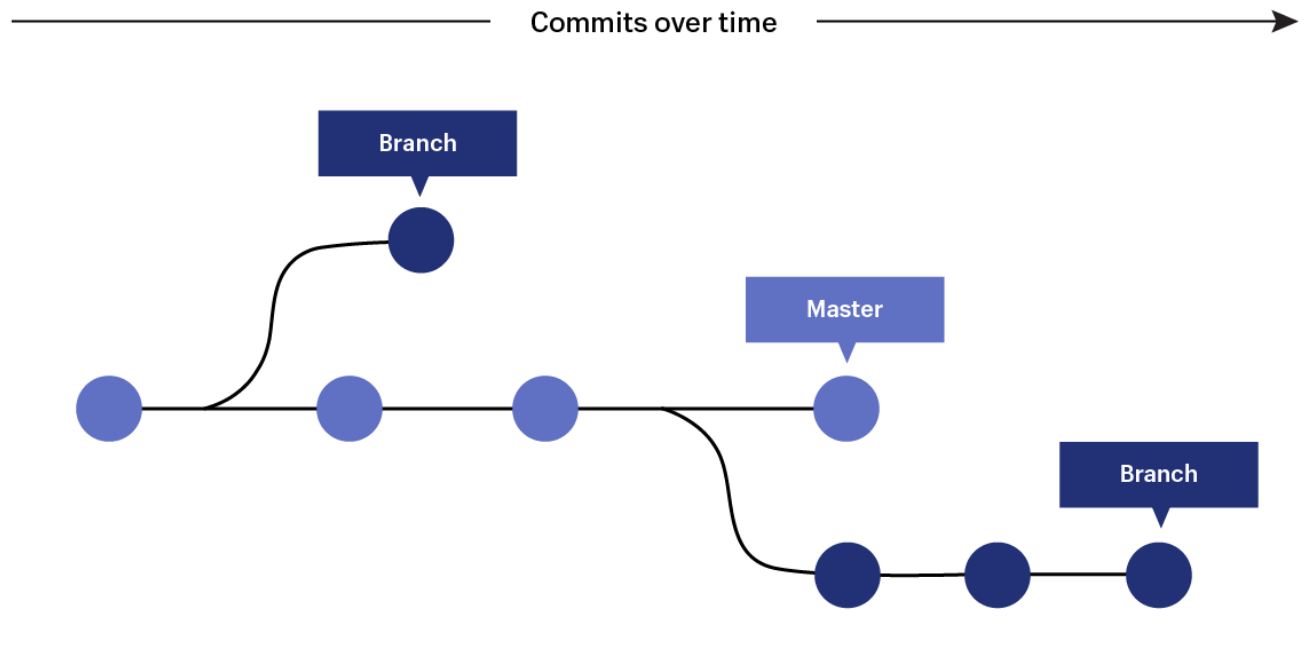
Lastly lets touch how Branches and Tag stored, as git use DAG – for Branches and Tags it just the named pointers to the commits, so no full copies are stored (space save !!). “master” is default name for the main branch. HEAD is special pointer that points the latest commit, and it moves automatically to the new commit in the current branch. Remember a single branch can have multiple commits. From the below diagram we could see the when a new branch is created a new commit pointer is created with the branch name, there can be any number of branches in the repository.

Fig 2: Representing a branch(s) over a period of time in the repository
Credits: https://angus.readthedocs.io/en/2019/_static/git_branch.png
.git Folder
All the magic in git happens using the .git folder under each repository, it is created when performing git init or git clone. Let's see what is under .git folder.
% ls -rlt .git
total 48
drwxr-xr-x 3 dev staff 96 Sep 25 2021 info
drwxr-xr-x 15 dev staff 480 Sep 25 2021 hooks
drwxr-xr-x 4 dev staff 128 Sep 25 2021 objects
drwxr-xr-x 5 dev staff 160 Sep 25 2021 refs
drwxr-xr-x 4 dev staff 128 Sep 25 2021 logs
-rw-r--r-- 1 dev staff 73 Sep 25 2021 description
-rw-r--r-- 1 dev staff 23 Sep 25 2021 HEAD
-rw-r--r-- 1 dev staff 5506 Sep 25 2021 packed-refs
-rw-r--r-- 1 dev staff 315 Sep 25 2021 config
-rw-r--r-- 1 dev staff 1872 Sep 25 2021 index
Files and Folders under .git
info:
Holds the exclude file, where it stores of the information/pattern of the filenames which needs to be ignored by to track. This is similar to .gitignore, the difference is .gitignore file can be committed and other clones will also ignore the matched pattern file from .gitignore. Whereas exclude file holds this information locally, specific to user's ignore needs. Eg: Lets say in ABC project we should not commit .exe files then this should be specified in the .gitignore. Another situation where I the developer using Eclipse for development, I need to restrict .build folder from git tracing, I need to mention this in the exclude file.
% ls
exclude
% cat exclude
# git ls-files --others --exclude-from=.git/info/exclude
# Lines that start with '#' are comments.
# For a project mostly in C, the following would be a good set of
# exclude patterns (uncomment them if you want to use them):
# *.[oa]
# *~
hooks:
Scripts that will be triggered with a Git event (before committing etc..). By default the hooks are not enabled, we need to remove .sample extension to make it working. One can use hooks in the CICD process, for instance after every commit run the testcase and build the repo.
% ls -l
-rwxr-xr-x 1 dev admin 478 Apr 17 2021 applypatch-msg.sample
-rwxr-xr-x 1 dev admin 896 Apr 17 2021 commit-msg.sample
-rwxr-xr-x 1 dev admin 3327 Apr 17 2021 fsmonitor-watchman.sample
-rwxr-xr-x 1 dev admin 189 Apr 17 2021 post-update.sample
-rwxr-xr-x 1 dev admin 424 Apr 17 2021 pre-applypatch.sample
-rwxr-xr-x 1 dev admin 1638 Apr 17 2021 pre-commit.sample
-rwxr-xr-x 1 dev admin 416 Apr 17 2021 pre-merge-commit.sample
-rwxr-xr-x 1 dev admin 1348 Apr 17 2021 pre-push.sample
-rwxr-xr-x 1 dev admin 4898 Apr 17 2021 pre-rebase.sample
-rwxr-xr-x 1 dev admin 544 Apr 17 2021 pre-receive.sample
-rwxr-xr-x 1 dev admin 1492 Apr 17 2021 prepare-commit-msg.sample
-rwxr-xr-x 1 dev admin 3610 Apr 17 2021 update.sample
objects:
File based key-value storage that holds commits, tree nodes and file contents (in blob form). Using SHA-1 hashing algorithm to get the unique name for the each particular object.
Commits: Here it holds all the versions of commits in key-value storage format. When you list this object folders, we will find all the commits with first 2 characters of the hash-object.
Tree nodes: Here it holds the view of the folder.
File: Here it holds the objects for each file and its contents are compressed in blob form and saved. “git cat-file -t <hash>” is used to identify type of the file. “git cat-file -p <hash>” will printout the content of the file.
objects % ls
01 1a 2c 41 56 6b 7b 8f a4 b6 ce df f3
15 28 3c 51 65 76 8b 9e b0 c8 dc ec info
16 29 3e 54 67 77 8c a0 b1 ca dd ef pack
% cd 01
01 % ls
eb55a5dfd92abb0134f6c72f9279552335a92a
% git cat-file -t eb55a5dfd92abb0134f6c72f9279552335a92a
fatal: Not a valid object name eb55a5dfd92abb0134f6c72f9279552335a92a
% git cat-file -t 01eb55a5dfd92abb0134f6c72f9279552335a92a
blob
% git cat-file -p 01eb55a5dfd92abb0134f6c72f9279552335a92a
class MongodbCommunityAT36 < Formula
desc "High-performance, schema-free, document-oriented database"
homepage "https://www.mongodb.com/"
Note: always append the directory name with the commit hash, as they are split and saved. The first two characters are directory name. And the rest is file name.
refs:
All the branches and tags collectively is called as refs is stored one file per reference under this folder. In the below sample we have 2 branches in our local. And both the master branch and new branch points to the same commit. Its advised not to edit this file manually until you are very sure what you are doing.
refs % ls -rtl
total 0
drwxr-xr-x 2 dev admin 64 Apr 17 2021 tags
drwxr-xr-x 3 dev admin 96 Apr 17 2021 remotes
drwxr-xr-x 3 dev admin 96 Feb 1 21:44 heads
refs % cd heads
heads % ls -rtl
total 16
-rw-r--r-- 1 dev admin 41 Feb 1 21:44 master
-rw-r--r-- 1 dev admin 41 Apr 25 09:41 demobranch
heads % cat demobranch
386b00f8f3ba71f5160fe1f29d51ce7e53ad280e
heads % cat master
386b00f8f3ba71f5160fe1f29d51ce7e53ad280e
packed-refs:
As seen above ref folder each reference of git in each single file, but the challenge is we have huge number if tags and branches in the same folder. This command is used to solve the storage and performance problem by storing the refs in a single file, $GIT_DIR/packed-refs. When a ref is missing from the traditional $GIT_DIR/refs directory hierarchy, it is looked up in this file and used if found.
.git % cat packed-refs
# pack-refs with: peeled fully-peeled sorted
cc943336683ab5ea4c290be9a498b7a4562071d5 refs/remotes/origin/bump-tools
34d47db74824181076c554f45d7cea68ed456d3e refs/remotes/origin/master
a3e4cabf043cbc7e192193c8d7f9b59901addbf5 refs/remotes/origin/release-3423
log:
Creates files on fly when any git operation takes place, holding the summary of the git history. For example storing all the metadata while each commit takes place.
logs % ls -l
total 8
-rw-r--r-- 1 dev admin 2579 Feb 1 21:44 HEAD
drwxr-xr-x 4 dev admin 128 Apr 17 2021 refs
logs % cat HEAD
0000000000000000000000000000000000000000 34d47************> 1618676794 +0530 clone: from https://github.com/mongodb/homebrew-brew
34d47db74824181076c554f45d7cea68ed456d3e 55480************> 1624643310 +0530 rebase (start): checkout origin/master
5548090ce600fe0e60e1abe7aa5926c95d5deb72 55480************> 1624643310 +0530 rebase (finish): returning to refs/heads/master
description:
Git generates a file named description which contains the name of the repository as set by the user. It is located at .git/description. It has a default value as an unnamed repository and the developers should place the actual project name and description in this file. It is used by Git as a default way to know the name of the repository. Below is the default message saved, which can be edited later.
% cat description
Unnamed repository; edit this file 'description' to name the repository.
HEAD:
Reference to current working branch. In this file it points to the filename where the head reference is saved.
.git % cat HEAD
ref: refs/heads/master
config:
Holds the configuration about the repository.
.git % cat config
[core]
repositoryformatversion = 0
filemode = true
bare = false
logallrefupdates = true
ignorecase = true
precomposeunicode = true
[remote "origin"]
url = https://github.com/scalableminds/chatroom.git
fetch = +refs/heads/*:refs/remotes/origin/*
[branch "master"]
remote = origin
merge = refs/heads/master
index:
Index is a binary file that acts as a staging area. It contains a sorted list of path names, each with permissions and the SHA1 of a blob object.
And git ls-files will show the contents of the index file.
% git ls-files --stage
120000 14c4a8f7d2ed4a1b8e867ad6a3b378040fa9ac86 0 Aliases/mongodb-community@5.0
120000 45894768be9624077c3fae65d61f47dffbb02942 0 Aliases/mongodb-mongocryptd@5.0
100644 da055e4a495e11d9c33858fe27c844b5d9771d0f 0 LICENSE
100644 543578df88d52fa543d327bcf9a848dfe0ffd013 0 README.md
100644 15f827989952dcfe27cdacd2d3ba0ade2d5daf72 0 tap_migrations.json
Below pages, beautifully explains the concept of git index.
https://stackoverflow.com/questions/4084921/what-does-the-git-index-contain-exactly
https://github.com/git/git/blob/master/Documentation/technical/index-format.txt
https://medium.com/hackernoon/understanding-git-index-4821a0765cf
Highlights:
The index is one of the most important data structures in git.
It represents a virtual working tree state by recording list of paths and their object names.
It serves as the “staging area” between the files you have on your filesystem and your commit history, ideally holds the next tree object to be committed.
This is a reason some call “staging area” as “index”.
In addition to storing your staged changes, the index also stores filesystem information about your working directory. This helps Git report changed files more quickly.
Architecture:

Fig 3: Index Architecture
Credits: https://stackoverflow.com/questions/4084921/what-does-the-git-index-contain-exactly
When you run git add, the files from your working directory are hashed and stored as objects in the index, leading them to be “staged changes”.
When you run git commit, the staged changes as stored in the index are used to create that new commit.
When you run git checkout, Git takes the data from a commit and writes it to the working directory and the index.
Commands
Setup and Config
git config
Syntax: git config [<file-option>] [--type=<type>] [--fixed-value] [--show-origin] [--show-scope] [-z|--null] <name> [<value> [<value-pattern>]]
Description: Used to query/set/replace/unset options for global level or system level or repository level (default level).
Example: Below example will show the user values filtered by regex value “user”
% git config --get-regex user
user.name xxxxx
user.email xxxx.xxxx@gmail.com
git help
Syntax: git help [-a|--all] [--[no-]verbose] [--[no-]external-commands] [--[no-]aliases]
Description: Using this command to get the information about the Git commands
Example: Should be able to see all commands in the standard output
% git --help –all
See 'git help <command>' to read about a specific subcommand
Main Porcelain Commands
add Add file contents to the index
am Apply a series of patches from a mailbox
....
Getting and Creating Projects
git init
Syntax: git init [-q | --quiet] [--bare] [--template=<template-directory>] [--separate-git-dir <git-dir>] [--object-format=<format>] [-b <branch-name> | --initial-branch=<branch-name>] [--shared[=<permissions>]] [<directory>]
Description: Creates an empty repositories, while ideally as seen above creating the .git folder.
Example: Creating a new repository using git init, note before git init the .git directory was not present.
% ls -la
total 0
drwxr-xr-x 2 dev staff 64 Apr 27 23:11 .
drwx------@ 7 dev staff 224 Apr 27 23:11 ..
% git init
hint: Using 'master' as the name for the initial branch. This default branch name
hint: is subject to change. To configure the initial branch name to use in all
hint: of your new repositories, which will suppress this warning, call:
hint:
hint: git config --global init.defaultBranch <name>
hint:
hint: Names commonly chosen instead of 'master' are 'main', 'trunk' and
hint: 'development'. The just-created branch can be renamed via this command:
hint:
hint: git branch -m <name>
Initialized empty Git repository in /Users/dev/Desktop/sample_git_project/.git/
% ls -lrta
total 0
drwx------@ 7 dev staff 224 Apr 27 23:11 ..
drwxr-xr-x 3 dev staff 96 Apr 27 23:11 .
drwxr-xr-x 9 dev staff 288 Apr 27 23:11 .git
git clone
Syntax: git clone [--template=<template-directory>] <repository> [<directory>]
Description: Creating a copy of an existing repository into a new directory
Example: Below we are cloning the package called tensorflow.
tensorflow % git clone https://github.com/tensorflow/tensorflow.git
Cloning into 'tensorflow'...
remote: Enumerating objects: 1340964, done.
remote: Counting objects: 100% (38/38), done.
remote: Compressing objects: 100% (26/26), done.
remote: Total 1340964 (delta 12), reused 33 (delta 11), pack-reused 1340926
Receiving objects: 100% (1340964/1340964), 863.41 MiB | 1.93 MiB/s, done.
Resolving deltas: 100% (1089562/1089562), done.
Updating files: 100% (26422/26422), done.
Basic Snapshotting
git add
Syntax: git add [--verbose | -v] [--dry-run | -n] [--force | -f] <filename>
Description: Using this command adds the files to the index, and to prepare the content staged for the next commit.
Example: Adding only the text files with test as filename, also using verbose to see the actions performed.
% git add test*.txt -v
add 'test1.txt'
add 'test2.txt'
add 'test3.txt'
git status
Syntax: git status [<options>] [--] [<pathspec>…]
Description: Displays the current status of the files in the working directory
Example: Here we have no files committed only few files added to the index
% git status
On branch master
No commits yet
Changes to be committed:
(use "git rm --cached <file>..." to unstage)
new file: README
new file: README.txt
new file: test1.txt
new file: test2.txt
new file: test3.txt
git commit
Syntax: git commit [-a | --interactive | --patch] [-s] [-v] [-u<mode>] [--amend] [-F <file> | -m <msg>]
Description: This command helps to create a new commit hash pointer containing the current contents of the index and the given log message describing the changes. The new commit is a direct child of HEAD.
Example: Below file we have made a single file commit with the message
% git commit -m "this is first commit for Readme" README
[master (root-commit) 20db617] this is first commit for Readme
1 file changed, 1 insertion(+)
create mode 100644 README
git notes
Syntax: git notes [list [<object>]] / [add [-f] [--allow-empty] [-F <file> | -m <msg> | (-c | -C) <object>] [<object>]]
Description: Adds, removes, or reads notes attached to objects, without touching the objects themselves. By default, notes are saved to and read from refs/notes/commits. A typical use of notes is to supplement a commit message without changing the commit itself. Notes can be shown by git log along with the original commit message.
Example: Adding and checking the added messages
% git notes add -m "adding notes message 1"
% git notes list
610d9138cd47c39cae037336c74c6c67126a2d33 20db6171e090eca544a639e10da7fecdcbe82ab6
% git notes show 20db6171e090eca544a639e10da7fecdcbe82ab6
adding notes message 1
git restore
Syntax: git restore [<options>] [--source=<tree>] [--staged] [--worktree] [--] <pathspec>…
Description: Restore specified paths in the working tree with some contents from a restore source. If a path is tracked but does not exist in the restore source, it will be removed to match the source. Here this command does not update the git logs.
Example: Adding content to a file and then later revert from HEAD commit pointer
% cat README
This is a testing message.
% cat >> README
This is a new line added in the README file
% cat README
This is a testing message.
This is a new line added in the README file
% git restore README
% cat README
This is a testing message.
git reset
Syntax: git reset [-q] [<tree-ish>] [--] <pathspec>…
Description: Reset the current working HEAD to specified state
Example: Here we are trying to add few commits and later moving the file to specified state of HEAD, like HEAD^1, undoing the change one back commit. This command alters the git history logs.
% cat README
This is a testing message.
adding few more lines after commit
% git reset --hard HEAD
HEAD is now at 20db617 this is first commit for Readme
% cat README
This is a testing message.
% cat >> README
Adding line for 2nd commit
% git commit -m "this is second commit for Readme" README
[master 1202219] this is second commit for Readme
1 file changed, 1 insertion(+)
% cat >> README
Adding line for 3rd commit
% cat README
This is a testing message.
Adding line for 2nd commit
Adding line for 3rd commit
% git commit -m "this is third commit for Readme" README
[master 30699a8] this is third commit for Readme
1 file changed, 1 insertion(+)
% git reset --hard HEAD^1
HEAD is now at 1202219 this is second commit for Readme
% cat README
This is a testing message.
Adding line for 2nd commit
git rm
Syntax: git rm [-f | --force] [-n] [-r] [--cached] [--ignore-unmatch] [<pathspec>…]
Description: Used to remove a file from the working directory and index
Example: Removing a file after added to index
% cat tobedeleted.txt
testing
% git add tobedeleted.txt
% git status
On branch master
Changes to be committed:
(use "git restore --staged <file>..." to unstage)
modified: README
new file: tobedeleted.txt
Untracked files:
(use "git add <file>..." to include in what will be committed)
README.txt
dummyfile.txt
test1.txt
test2.txt
test3.txt
% git rm tobedeleted.txt
error: the following file has changes staged in the index:
tobedeleted.txt
(use --cached to keep the file, or -f to force removal)
% git rm -f tobedeleted.txt
rm 'tobedeleted.txt'
% git status
On branch master
Changes to be committed:
(use "git restore --staged <file>..." to unstage)
modified: README
Untracked files:
(use "git add <file>..." to include in what will be committed)
README.txt
dummyfile.txt
test1.txt
test2.txt
test3.txt
% cat tobedeleted.txt
cat: tobedeleted.txt: No such file or directory
git mv
Syntax: git mv <options>..., <args>...,
Description: Moving or we can say renaming of a file or directory
Example: Renaming file after adding to git
% git add tobemoved.txt
% git status
On branch master
Changes to be committed:
(use "git restore --staged <file>..." to unstage)
modified: README
new file: tobemoved.txt
Untracked files:
(use "git add <file>..." to include in what will be committed)
README.txt
dummyfile.txt
test1.txt
test2.txt
test3.txt
% git mv tobemoved.txt renamed.txt
% git status
On branch master
Changes to be committed:
(use "git restore --staged <file>..." to unstage)
modified: README
new file: renamed.txt
Untracked files:
(use "git add <file>..." to include in what will be committed)
README.txt
dummyfile.txt
test1.txt
test2.txt
test3.txt
Comparison
git diff
Syntax: git diff [<options>] [<commit>] [--] [<path>]
Description: Find the difference between commits or working directory
Example: Showing the difference between two commits here
% git diff 3e8cd2f2de08e74ad9b23243b10f4e7220c2fd24 20db6171e090eca544a639e10da7fecdcbe82ab6
diff --git a/README b/README
index 4da1658..190a3d6 100644
--- a/README
+++ b/README
@@ -1,2 +1 @@
This is a testing message.
-This is 3rd line
Branching and Merging
git branch
Syntax: git branch [options] [<branchname>]
Description: Command used to create, list and delete the branches
Example: List a present branches in the repository
% git branch --list
demobranch
* master
git checkout
Syntax: git checkout [-q] [-f] [-m] [<branch>]
Description: Switch between branches or working directory tree. You might wonder well this is what reset does yes and no, reset resets the index without touching the working tree, while checkout changes the working tree without touching the index.
Example: Lets see the list of branches and try to create a branch with same name it should show error. Also try to switch between branches
## currently the master is our HEAD
% git branch --list
* master
demobranch
## lets try to create a existing branch using -b option, it throws an error -- good
% git checkout -b demobranch
fatal: A branch named 'demobranch' already exists.
## switch to the existing branch
% git checkout demobranch
Switched to branch 'demobranch'
## checking the status of the current working directory, its pointed to the demobranch
% git status
On branch demobranch
nothing to commit, working tree clean
git merge
Syntax: git merge [--options]
Description: Git’s usage of a nonlinear content storage and commit history system allows it to seamlessly merge two branches of a project together.
Example: Lets see the magic how git merges the files from the branch to the master.
## create a new branch
% git checkout -b newbranch
Switched to a new branch 'newbranch'
## check the content of the files
% cat README
This is a testing message.
This is 3rd line
This is 4th line
## add more content to the file
% cat >> README
This is a new line from branch
## commit the file in the branch
% git add README
% git commit -m "adding a line from a branch"
[newbranch 826364d] adding a line from a branch
2 files changed, 4 insertions(+)
create mode 100644 renamed.txt
## using git switch we can easily to the master branch (or any branch per say)
% git branch --list
master
* newbranch
% git switch master
Switched to branch 'master'
## lets see the content of the file in the master branch
% cat README
This is a testing message.
This is 3rd line
## now lets merge the file changes from newbranch to master
% git merge newbranch
Updating 3e8cd2f..826364d
Fast-forward
README | 2 ++
renamed.txt | 2 ++
2 files changed, 4 insertions(+)
create mode 100644 renamed.txt
## yahoo!! the files got merged neatly
% cat README
This is a testing message.
This is 3rd line
This is 4th line
This is a new line from branch
git rebase
Syntax: git rebase [--options]
Description: Rebase operation is like a merge, but deletes the history of the merged branch and adds copies of its commits on top (at the end of) of the destination branch's commits, to help simplify tracking the commit history when there too many parallel branches
Rebase operation changes the ordering of the merged commits, and can sometimes cause trouble, prefer merge instead of rebase in general
Below references git documentation, easy to understand:
Assume the following history exists and the current branch is "topic":
          A---B---C topic
         /
    D---E---F---G master
From this point, the result of either of the following commands:
git rebase master
git rebase master topic
would be:
                  A'--B'--C' topic
                 /
    D---E---F---G master
Example: Rebase the folder from branch to master, simulate the above scenario
## starting from the master branch
% git status
On branch master
nothing to commit, working tree clean
## adding two commits below in the master
% cat > README
line 1
% git add README
% git commit -m "commit 1 line master"
[master a45af55] commit 1 line master
1 file changed, 1 insertion(+)
create mode 100644 README
% cat >> README
line 2
% git add README
% git commit -m "commit 2 line master"
[master 50d04db] commit 2 line master
1 file changed, 1 insertion(+)
% cat README
line 1
line 2
## switch to new branch by creating
% git switch -c newbranch
Switched to a new branch 'newbranch'
% cat README
line 1
line 2
## committing two more
% cat >> README
branch 3
% git add README
% git commit -m "branch 3 line commit"
[newbranch 15d6a96] branch 3 line commit
1 file changed, 1 insertion(+)
% cat >> README
branch 4
% git add README
% git commit -m "branch 4 line commit"
[newbranch bbf7d17] branch 4 line commit
1 file changed, 1 insertion(+)
# switching to master and creating a comimt
% git switch master
Switched to branch 'master'
Your branch is ahead of 'origin/master' by 2 commits.
(use "git push" to publish your local commits)
% cat README
line 1
line 2
% cat >> README
line 3
% git add README
% git commit -m "commit 3 line master"
[master 5ab91d9] commit 3 line master
1 file changed, 1 insertion(+)
## now rebase the branch with master
% git rebase master newbranch
Auto-merging README
CONFLICT (content): Merge conflict in README
error: could not apply 15d6a96... branch 3 line commit
Resolve all conflicts manually, mark them as resolved with
"git add/rm <conflicted_files>", then run "git rebase --continue".
You can instead skip this commit: run "git rebase --skip".
To abort and get back to the state before "git rebase", run "git rebase --abort".
Could not apply 15d6a96... branch 3 line commit
% cat README
line 1
line 2
<<<<<<< HEAD
line 3
=======
branch 3
>>>>>>> 15d6a96 (branch 3 line commit)
% git log
commit 5ab91d9f63c81303466b76f40b8a7318f5880a6e (HEAD, master)
Author: xxxxx <sxxxxx>
Date: Sat Apr 30 00:12:38 2022 +0530
commit 3 line master
commit 50d04db28f3ad1a220f8e807d983d258c0a15ba1
Author: xxxxx <sxxxxx>
Date: Fri Apr 29 23:34:40 2022 +0530
commit 2 line master
commit a45af55a778c3efc2de6968fc06ce73abd1dfb89
Author: xxxxx <sxxxxx>
Date: Fri Apr 29 23:34:04 2022 +0530
commit 1 line master
git tag
Syntax: git tag [<options>] <tagname> [<commit> | <object>]
Description: User can create, list, delete or verify a tag object signed with GPG
Example: Create a tag, and list the files mapped to the tag
## Creation of Tag, with tag name as FEATURE_XYZ
% git tag -a FEATURE_XYZ -m "this file for feature xyz"
## List the tags available
% git tag --list
FEATURE_XYZ
## Lets see if our commit has been tagged, oh Yes!
% git show
commit 5ab91d9f63c81303466b76f40b8a7318f5880a6e (HEAD, tag: FEATURE_XYZ, master)
Author: xxxxx <xxxxx>
Date: Sat Apr 30 00:12:38 2022 +0530
commit 3 line master
diff --git a/README b/README
index 7bba8c8..a92d664 100644
--- a/README
+++ b/README
@@ -1,2 +1,3 @@
line 1
line 2
+line 3
## Lets see the internals and find if the tag object is created
% cat .git/refs/tags/FEATURE_XYZ
9c48cb2c0e16acf3483e675aaec97f409ccd8c2d
## File type and content of the Tag file, holds the object and tag name and message
% git cat-file -t 9c48cb2c0e16acf3483e675aaec97f409ccd8c2d
tag
% git cat-file -p 9c48cb2c0e16acf3483e675aaec97f409ccd8c2d
object 5ab91d9f63c81303466b76f40b8a7318f5880a6e
type commit
tag FEATURE_XYZ
tagger xxxxx <xxxxx> 1651287291 +0530
this file for feature xyz
git stash
Syntax: git stash [<stash-options>] [<log-options>]
Description: If we are in the middle of some task and need to get a clean working directory and simultaneously we want to keep all our current edits, then we can use the Git stash.
Example:
## adding new line to the file
% cat >> README
adding a new line before stash -- dirty write
## lets see the file content before we stash the changes
% cat README
line 1
line 2
line 3
branch 3
adding a new line before stash -- dirty write
## now stash the current working directory
% git stash
Saved working directory and index state WIP on (no branch): affb616 merged the changes from branch
## after stashing lets see the file content
% cat README
line 1
line 2
line 3
branch 3
## now lets bring back the stashed changes
% git stash pop
interactive rebase in progress; onto 5ab91d9
Last command done (1 command done):
pick 15d6a96 branch 3 line commit
Next command to do (1 remaining command):
pick bbf7d17 branch 4 line commit
(use "git rebase --edit-todo" to view and edit)
You are currently editing a commit while rebasing branch 'newbranch' on '5ab91d9'.
(use "git commit --amend" to amend the current commit)
(use "git rebase --continue" once you are satisfied with your changes)
Changes not staged for commit:
(use "git add <file>..." to update what will be committed)
(use "git restore <file>..." to discard changes in working directory)
modified: README
no changes added to commit (use "git add" and/or "git commit -a")
Dropped refs/stash@{0} (542d44da44b91cb0cab93e5ed5ecc1893e102fa9)
## file content post stash poping
% cat README
line 1
line 2
line 3
branch 3
adding a new line before stash -- dirty write
Sharing and Updating Projects
git fetch
Syntax: git fetch [<options>] [<repository> [<refspec>…]]
Description: Download the objects or reference from remote or another repository, also can download using branch or tag names as well. You can use git fetch to know the changes done in the remote repo/branch since your last pull. This is useful to allow for checking before doing an actual pull, which could change files in your current branch and working copy.
Example: copies all branches from the remote refs/heads/ namespace and stores them to the local refs/remotes/origin/ namespace and does not affect the current local working space.
% git fetch origin
remote: Enumerating objects: 35, done.
remote: Counting objects: 100% (35/35), done.
remote: Compressing objects: 100% (22/22), done.
remote: Total 35 (delta 17), reused 30 (delta 13), pack-reused 0
Unpacking objects: 100% (35/35), 10.92 KiB | 223.00 KiB/s, done.
From https://github.com/mongodb/homebrew-brew
* [new branch] MONGOSH-1119-csfle-shared-lib -> origin/MONGOSH-1119-csfle-shared-lib
* [new branch] dmoody256-4-4-10 -> origin/dmoody256-4-4-10
* [new branch] dmoody256-patch-1 -> origin/dmoody256-patch-1
386b00f..710d895 master -> origin/master
* [new branch] mongodb_4_4_9 -> origin/mongodb_4_4_9
* [new branch] update-mongo-5_0_6 -> origin/update-mongo-5_0_6
* [new branch] update-mongodb-4_0_28 -> origin/update-mongodb-4_0_28
* [new branch] update-mongodb-4_2_18 -> origin/update-mongodb-4_2_18
* [new branch] update-mongodb-4_4_11 -> origin/update-mongodb-4_4_11
* [new branch] update-mongodb-5_0_5 -> origin/update-mongodb-5_0_5
* [new branch] update_5_0_3 -> origin/update_5_0_3
* [new branch] update_5_0_3-1 -> origin/update_5_0_3-1
* [new branch] update_mongo_4_0_27 -> origin/update_mongo_4_0_27
* [new branch] update_mongo_4_2_17 -> origin/update_mongo_4_2_17
* [new branch] update_mongodb_4_4_13 -> origin/update_mongodb_4_4_13
* [new branch] update_mongodb_4_4_19 -> origin/update_mongodb_4_4_19
* [new branch] update_mongodb_5_0_7 -> origin/update_mongodb_5_0_7
## the current changes are not affected.
% ls -rlt
total 56
-rw-r--r-- 1 dev admin 10767 Apr 17 2021 LICENSE
-rw-r--r-- 1 dev admin 34 Jun 25 2021 tap_migrations.json
drwxr-xr-x 4 dev admin 128 Jul 19 2021 Aliases
-rw-r--r-- 1 dev admin 5245 Jul 19 2021 README.md
drwxr-xr-x 16 dev admin 512 Feb 1 21:44 Formula
-rw-r--r-- 1 dev admin 76 Apr 30 08:48 README
(base) dev@ThangaSelvis-MacBook-Air homebrew-brew % cat README
line 1
line 2
line 3
branch 3
adding a new line before stash -- dirty write
git pull
Syntax: git pull [<options>] [<repository> [<refspec>…]]
Description: Brings the latest changes from another or centralized repository to get the current working directory. git pull runs git fetch with the given parameters and then depending on configuration options or command line flags, will call either git rebase or git merge to reconcile diverging branches.
Below references git documentation, easy to understand:
Assume the following history exists and the current branch is "master":
          A---B---C master on origin
         /
    D---E---F---G master
        ^
        origin/master in your repository
Then "git pull" will fetch and replay the changes from the remote master branch since it diverged from the local master (i.e., E) until its current commit (C) on top of masterand record the result in a new commit along with the names of the two parent commits and a log message from the user describing the changes.
          A---B---C origin/master
         /         \
    D---E---F---G---H master
Example: After running the pull, the files are merged from origin to local.
% git pull
hint: Pulling without specifying how to reconcile divergent branches is
hint: discouraged. You can squelch this message by running one of the following
hint: commands sometime before your next pull:
hint:
hint: git config pull.rebase false # merge (the default strategy)
hint: git config pull.rebase true # rebase
hint: git config pull.ff only # fast-forward only
hint:
hint: You can replace "git config" with "git config --global" to set a default
hint: preference for all repositories. You can also pass --rebase, --no-rebase,
hint: or --ff-only on the command line to override the configured default per
hint: invocation.
remote: Enumerating objects: 265, done.
remote: Counting objects: 100% (265/265), done.
remote: Compressing objects: 100% (130/130), done.
remote: Total 265 (delta 131), reused 240 (delta 127), pack-reused 0
Receiving objects: 100% (265/265), 63.26 KiB | 2.18 MiB/s, done.
Resolving deltas: 100% (131/131), done.
From https://github.com/Homebrew/homebrew-services
59b361b..8cb99f5 master -> origin/master
Updating 59b361b..8cb99f5
Fast-forward
.github/workflows/tests.yml | 6 +++---
.github/workflows/triage-issues.yml | 4 ++--
Gemfile.lock | 30 +++++++++++++--------------
README.md | 8 +++-----
cmd/services.rb | 23 +++++++++++++++------
lib/service.rb | 1 +
lib/service/commands/kill.rb | 16 +++++++++++++++
lib/service/commands/list.rb | 21 +++++++++++++++++--
lib/service/commands/restart.rb | 24 +++++++++++++---------
lib/service/formula_wrapper.rb | 22 ++++++++++++++------
lib/service/services_cli.rb | 82 +++++++++++++++++++++++++++++++++++++++++++++++--------------------------
spec/homebrew/commands/list_spec.rb | 51 ++++++++++++++++++++++++++++++++++++++++++++-
spec/homebrew/commands/restart_spec.rb | 25 ++++++++--------------
spec/homebrew/formula_wrapper_spec.rb | 52 +++++++++++++++++++++++-----------------------
spec/homebrew/services_cli_spec.rb | 67 ++++++++++++++++++++++++++++++++++++++++++++++++++++++++---
spec/homebrew/system_spec.rb | 10 ++++-----
16 files changed, 313 insertions(+), 129 deletions(-)
create mode 100644 lib/service/commands/kill.rb
git push
Syntax: git push [--<options>]
Description: Copies the all the local committed refs to the remote refs
Example: Pushes the changes to HEAD
% git push origin HEAD
Inspection
git log
Syntax: git log [<options>] [<revision-range>] [[--] <path>…]
Description: Shows the committed information of the history of the commits in the repository
Example:
% git log
commit 7db6b81c8f75f30ee16e8d435cd4bf26be8ebbc4 (HEAD -> master)
Author: thangaselvi <selvi.dct@gmail.com>
Date: Sat Apr 30 11:17:43 2022 +0530
README file commit ver1
commit bdf55da5d70d020b94539fdb78d62a18a47d040b
Author: thangaselvi <selvi.dct@gmail.com>
Date: Sat Apr 30 11:12:52 2022 +0530
README file commit ver1
git reflog
Syntax: git reflog <subcommand> <options>
Description: Manipulates the actions on the repository's local commits
Example:
% git reflog show
7db6b81 (HEAD -> master) HEAD@{0}: commit: README file commit ver1
bdf55da HEAD@{1}: commit (initial): README file commit ver1
Plumbing Commands
There are two types of commands, one is Porcelain, which is user friendly so far we have seen above. Next is Plumbing commands where we can dig in further and do stuff manually.
git hash-object
Syntax: git hash-object [-t <type>] [-w] --stdin-paths [--no-filters]
Description: It will calculate SHA-1 hash and put the blob file into key-value storage
Example: Creating the hash-object for the README file
% git hash-object README
038d718da6a1ebbc6a7780a96ed75a70cc2ad6e2
git write-tree
Syntax: git write-tree [--missing-ok] [--prefix=<prefix>/]
Description: Create a tree node from current index objects (remember we staged our blob[038d718da6a1ebbc6a7780a96ed75a70cc2ad6e2] in there). Thus it will return a new hash which represents our new tree node.
Example: Create a new tree node
% git write-tree
ee997c8bcfa2ade004e684efdc1a409d16a8d331
git cat-file
Syntax: git cat-file <type> <object>
Description: Commit content printed by using this command, because Git uses different internal binary format than general encoding.
Example:
(base) dev@ThangaSelvis-MacBook-Air sample % git cat-file -t ee997c8bcfa2ade004e684efdc1a409d16a8d331
tree
(base) dev@ThangaSelvis-MacBook-Air sample % git cat-file -p ee997c8bcfa2ade004e684efdc1a409d16a8d331
100644 blob 038d718da6a1ebbc6a7780a96ed75a70cc2ad6e2 README
(base) dev@ThangaSelvis-MacBook-Air sample % git cat-file -t 038d718da6a1ebbc6a7780a96ed75a70cc2ad6e2
blob
(base) dev@ThangaSelvis-MacBook-Air sample % git cat-file -p 038d718da6a1ebbc6a7780a96ed75a70cc2ad6e2
testing
git ls-files | git ls-tree
Syntax: git ls-tree [--<options>] / git ls-files [--<options>]
Description: Check staged elements on index files using this command either list the files or list the given tree's files
Example:
(base) dev@ThangaSelvis-MacBook-Air sample % git ls-files
README
(base) dev@ThangaSelvis-MacBook-Air sample % git ls-tree ee997c8bcfa2ade004e684efdc1a409d16a8d331
100644 blob 038d718da6a1ebbc6a7780a96ed75a70cc2ad6e2 README
git rev-parse
Syntax: git rev-parse [<options>] <args>…
Description: Used to translate a short hash into a long hash.
Example:
(base) dev@ThangaSelvis-MacBook-Air sample % git rev-parse 038d718da6
038d718da6a1ebbc6a7780a96ed75a70cc2ad6e2
git show-refs
Syntax: git show-ref [--<options>]
Description: Used to show both local and remote branches
Example:
% git show-ref
386b00f8f3ba71f5160fe1f29d51ce7e53ad280e refs/heads/demobranch
5ab91d9f63c81303466b76f40b8a7318f5880a6e refs/heads/master
bbf7d178a85222692f7fb9680d5979e19c44487e refs/heads/newbranch
710d895cb47a2cf99fd2399277de2227b20e910a refs/remotes/origin/HEAD
Role of Git in DevOps
As Git manages the meat of the software which is source code, it plays a very crucial role in DevOps. In the software life cycle, after source code is ready it needs to be tested and deployed, the CICD pipeline. Git can be easily integrated with different tools such as Jenkins, etc. Also it is different OS compatible.
Below are the Git Customization Options:
Git Hooks: Git hooks are scripts that run automatically every time a particular event occurs in a Git repository. They let you customize Git’s internal behaviour and trigger customizable actions at key points in the development life cycle. Hooks are ordinary scripts that reside in the .git/hooks repository, which makes them very easy to install and customize.
Git Configuration: Git operate in a more customized fashion, by introducing several important configuration settings. Git uses a repository, local and system level of configuration files to determine non-default behaviour.
System Level - Git looks for these values is in the system-wide [path]/etc/gitconfig file, which contains settings that are applied to every user on the system and all of their repositories. If you pass the option --system to git config, it reads and writes from this file specifically.
Local or User Level - Git looks is the ~/.gitconfig(or ~/.config/git/config) file, which is specific to each user. You can make Git read and write to this file by passing the --global option.
Repository Level - Git looks for configuration values in the configuration file in the Git directory (.git/config) of the repository currently using. These values are specific to that single repository, and represent passing them --local option to git config, and this is the default option.
Git Attributes: Git allows to specify path-specific or subset of files specific settings which are called Git attributes. These can be either specified in a .gitattributes file in one of directories (normally the root of project) or in the .git/info/attributes file if don’t want the attributes file committed with the project.
Using attributes, one can do things like specify separate merge strategies for individual files or directories in the project, or tell Git how to diff non-text files, or have Git filter content before performing checkin or checkout of Git.
Best Practices
Branches, effectively use branches for each features. Later these branches could be merged. Also branches could be done task, individual module wise.
Tags, associating tags to the releases is simpler and powerful than branches.
Code review, hooks could be used to do automation reviews of the source pre and post commit.
Test, enable testcase execution before every push or commit.
Commit messages, this is always taken for granted but has a great impact for future reference.
Frequent commits, do not wait till end to commit your changes, small commits avoids several hours of redo.
Push frequently, this enables the peers or clones to get the latest and greatest. Also helps in merging of the code with ease.
Pros of Git
Distributed system, very effective for distributed teams and
Compatibility
High performance
Efficient storage
Easy and maintainable short commits
Concurrent releases achievable using branches
Traceability, each commit is hashed and can be easily reached out to the respective version.
Good security, tracking who has made certain change
Risk, very less risk when the central system is corrupted. As the local clones of the repositories holds the complete information about the history. Unlike traditional client-server architecture.
Peer-to-peer architecture, doesn't technically requires central server. But mostly organizations do have.
Cons of Git
As I always say nothing is perfect, there is no solution that solves all the problems. Git as well comes with few cons, here are they:
Difficult to understand and sometime hard to explain as well.
Partial syncing is not allowed, always the whole project needs to be sync to the central system/peer system(if applicable). Say git is not reentrant, which means it cannot be interrupted in the middle of its execution and safely run again.
For very large binary files is not very much compatible with git, it slows downs git (personally not experienced myself much).
Conclusion
Git is a powerful open source tools for maintaining the versions of source code. We have seen the internals how it functions and uses tree, hashes and DAG concepts effectively. Got familiarized with few git commands. Git plays a crucial role in CICD pipeline.
Appreciate Linus & Team and The Developers from the open source community in building the Git !!!
References
https://www.atlassian.com/git/tutorials/atlassian-git-cheatsheet
https://dzone.com/articles/top-20-git-commands-with-examples
https://levelup.gitconnected.com/top-30-git-commands-you-should-know-to-master-git-cli-f04e041779bc
https://towardsdatascience.com/top-20-most-frequently-used-git-commands-part-1-5f8c9212509f
https://www.datree.io/resources/git-commands
https://education.github.com/git-cheat-sheet-education.pdf
https://www.freecodecamp.org/news/git-cheat-sheet/
https://intellipaat.com/blog/what-is-git/#no4
https://www.designveloper.com/blog/git-concepts-architecture/
https://www.what-could-possibly-go-wrong.com/version-control/#traditional-version-control
https://shalithasuranga.medium.com/how-does-git-work-internally-7c36dcb1f2cf
https://www.delftstack.com/howto/git/reset-and-restore-in-git/